
Snooze Status
Snooze Is An Optional Configuration for The Paused Status That Resumes Automatically
Snooze: A Paused Subscription Status That Auto-Resumes
If you offer a Pause option to your subscribers today, Snooze is a low-effort upgrade that's worth a few minutes of your time to configure. Subscribers Snooze a Scheduled Order for a specific length of time — one week, two weeks, one month, or a custom duration they pick — and the order automatically resumes when that time is up. No "remember to come back" required from the subscriber. No indefinite Paused state quietly turning into churn.
Two things make Snooze a stronger churn lever than an indefinite Pause:
- Snoozed Scheduled Orders auto-resume. The subscriber chose a return date when they Snoozed — the order comes back on its own. They don't have to log back in or remember to reactivate.
- Snoozed is tracked as its own status in your reporting. It's distinct from Paused and Active, and it isn't treated as a hard-churn or churn-risk indicator the way an indefinitely Paused subscription is. Your retention dashboards stay honest.
Setup takes a couple of minutes in your QPilot Site's Customer Portal Settings — toggle Snooze on, choose which duration options your subscribers can pick from, and save. If you'd like to replace your current Pause action with Snooze entirely, you can hide the Pause button and relabel Snooze right from Customer Portal Settings (or through your Localization Settings), giving you a drop-in churn-reduction upgrade your subscribers will recognize by name.
Features of Snooze:
- Auto-resume — Snoozed Scheduled Orders return to Active automatically on the chosen resume date; no subscriber or merchant action required
- The resume date is the next order date — when an order is Snoozed, its Next Occurrence Date is set to the resume date, so subscribers see a single, consistent date instead of a next order date that falls before the snooze ends
- Tracked separately in reporting — Snoozed appears as its own status distinct from Paused and Active, and isn't treated as a churn-risk indicator
- Available everywhere subscribers manage their orders — QPilot Merchant Center, the v2 Subscriber Portal, and the embedded portal in your Shopify or WooCommerce storefront
- Quick-select durations plus custom — defaults of 1 Week, 2 Weeks, and 1 Month, with a custom duration option in Days, Weeks, or Months
- Configurable per store — control whether subscribers can Snooze, which duration options they see, whether the Pause button is shown, and what the action is labeled — all from Customer Portal Settings
- Available as a Retention Workflow action and Splash Screen offer type — offer Snooze as a save-the-sale at key churn moments
- Backward-compatible with existing integrations — Snoozed is a special kind of Paused for integrations that only understand Active and Paused, so nothing breaks
- Fully localizable — rename "Snooze," "Resume," and "Snoozed Until" to anything that fits your brand through your Localization Settings, or relabel the Snooze action right in Customer Portal Settings. Want to replace your existing Pause action entirely? Display Snooze as "Pause" and you've got a drop-in churn-reduction upgrade.
📘 Want to set your subscribers up for success?Check out our Subscriber Success Guide and get access to user-friendly how-to snippets for customers here!
Table of Contents
- Configuring Snooze for Subscribers
- Using Snooze in QPilot Merchant Center
- Snooze in the v2 Subscriber Portal
- Snooze in Your Online Store (Shopify & WooCommerce)
- Auto-Resume Behavior
- Snooze as a Retention Action
- What Subscribers See When an Order Is Snoozed
- FAQ
Configuring Snooze for Subscribers
You decide whether subscribers can Snooze their own orders and which duration options they see. These settings live in your QPilot Site Settings under Customer Portal → General Settings.
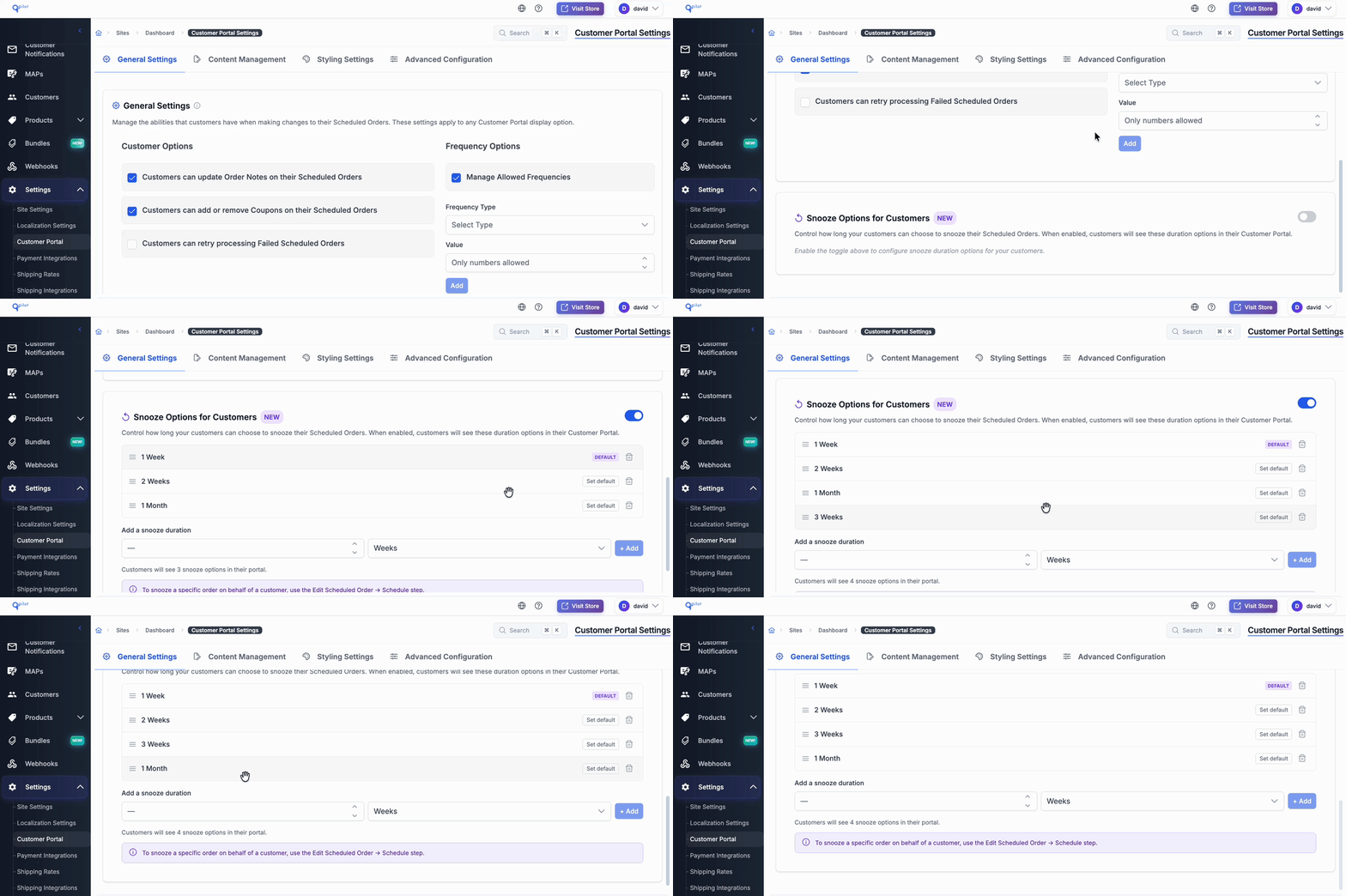
Snooze configuration lives in your QPilot Site's Customer Portal Settings.
Allow Subscribers to Snooze
Controls whether the Snooze button appears in the v2 Subscriber Portal (including the embedded portal in Shopify and WooCommerce storefronts). When this is off, only merchants can Snooze a Scheduled Order — from QMC. When this is on, both subscribers and merchants can Snooze.
Snooze Options
The list of duration choices subscribers see when they Snooze an order. Each option has a duration (a number) and a duration type (Days, Weeks, or Months). The options are drag-reorderable — the order you set is the order subscribers will see, and the first option is the default pre-selected duration in the Snooze dialog.
Default Snooze Options when nothing is configured: 1 Week, 2 Weeks, 1 Month — with 1 Week as the default.
Show or Hide the Pause Button
You can choose whether the Pause action appears alongside Snooze in the Subscriber Portal. If you'd rather offer subscribers a single, time-bound option, hide Pause and present only Snooze. This is the cleanest way to retire an indefinite Pause in favor of Snooze without losing the action your subscribers are used to.
Relabel the Snooze Action
You can rename the Snooze action right from Customer Portal Settings — no need to go into Localization Settings unless you want to. A common pattern is to hide the Pause button and label Snooze as "Pause," so subscribers get the familiar action with the better (auto-resuming) behavior underneath. The Snoozed status is also localizable in QMC.
📘 Custom durations are merchant-configuredThe Snooze Options you set here are the quick-select choices your subscribers pick from in the portal. You and your admins can also apply a custom duration in Days, Weeks, or Months when snoozing an order from QMC. If you want to let subscribers choose a specific custom resume date themselves, that's a WooCommerce Native-UI option that's off by default — see Snooze in Your Online Store below.
📘 What happens to existing paused subscriptions?Enabling Snooze on a Site that already has paused Scheduled Orders doesn't change those orders. Existing Paused Scheduled Orders stay Paused exactly as they are — they aren't retroactively converted to Snoozed, and no automatic resume date is assigned. Subscribers (or you) can resume them manually whenever they're ready, and any new Snooze action taken after enablement goes through the Snooze flow.
Using Snooze in QPilot Merchant Center
Snooze is available from three places in QMC:
- the Scheduled Orders list shows administrators which Scheduled Orders are currently "Snoozed"
- the row-level actions menu opens a Snooze dialog for administrators to change/edit snooze options
- the Scheduled Order edit view shows options for a Scheduled Order that is already snoozed or enables administrators to change the status to Snoozed by adding a resume option to any Paused Scheduled Order
From the Scheduled Orders List
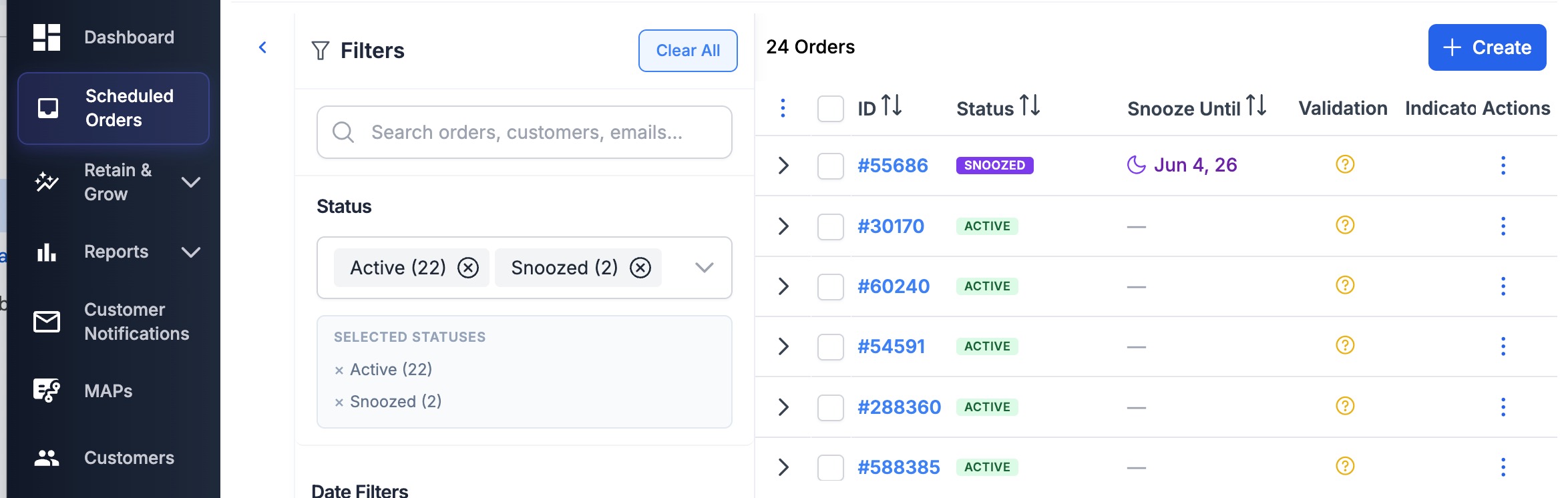
The Scheduled Orders list view shows a Snooze Until date and a Snoozed tag for any Snoozed Scheduled Order.
The Scheduled Orders list view includes a Snooze Until column that displays the resume date for any Snoozed order. Snoozed orders display a purple Snoozed tag alongside their Status. You can filter the list to show only Snoozed orders using the Snoozed filter option.
To Snooze an order from the list, open its row-action menu and select Snooze — the Snooze dialog opens.
The Snooze Dialog
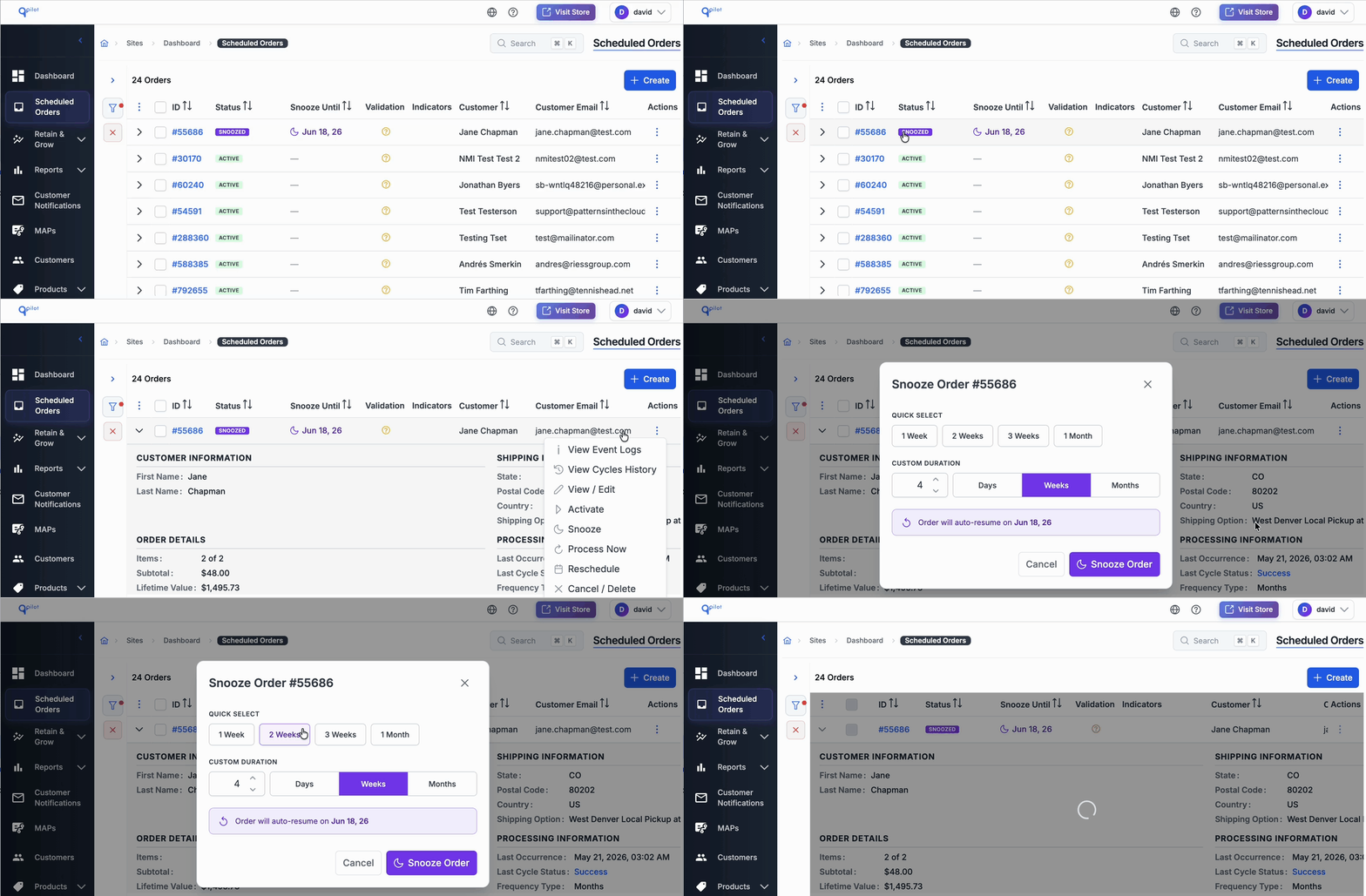
The Snooze dialog previews the resume date as you adjust the duration — no math required
The Snooze dialog displays the duration options you configured under Snooze Options, plus a custom duration input. As you change the duration, the dialog previews the calculated resume date so there's no math required.
Confirm to move the Scheduled Order to Snoozed. Cancel and nothing changes.
From the Edit Scheduled Order View
When you open a Scheduled Order's edit view, a Snooze section appears. If the order is not currently Snoozed, you can Snooze it from this section. If the order is already Snoozed, the section displays the current resume date and lets you change it or resume the order immediately.
📘 Re-snoozingA Scheduled Order that's already Snoozed can be re-snoozed at any time. Opening the Snooze dialog on a Snoozed order pre-fills the current duration; saving updates the resume date.
⚠️ Edits are locked while a Scheduled Order is SnoozedWhile a Scheduled Order is Snoozed, edits to items, frequency, payment method, shipping, and coupons are locked to preserve the snooze state. To make changes, resume the order first — then re-Snooze if needed.
Snooze in the v2 Subscriber Portal
When Allow Subscribers to Snooze is enabled, the v2 Subscriber Portal displays a Snooze button on each Scheduled Order. Tapping it opens the Snooze dialog with your configured Snooze Options as quick-select chips, with the first option pre-selected as the default.
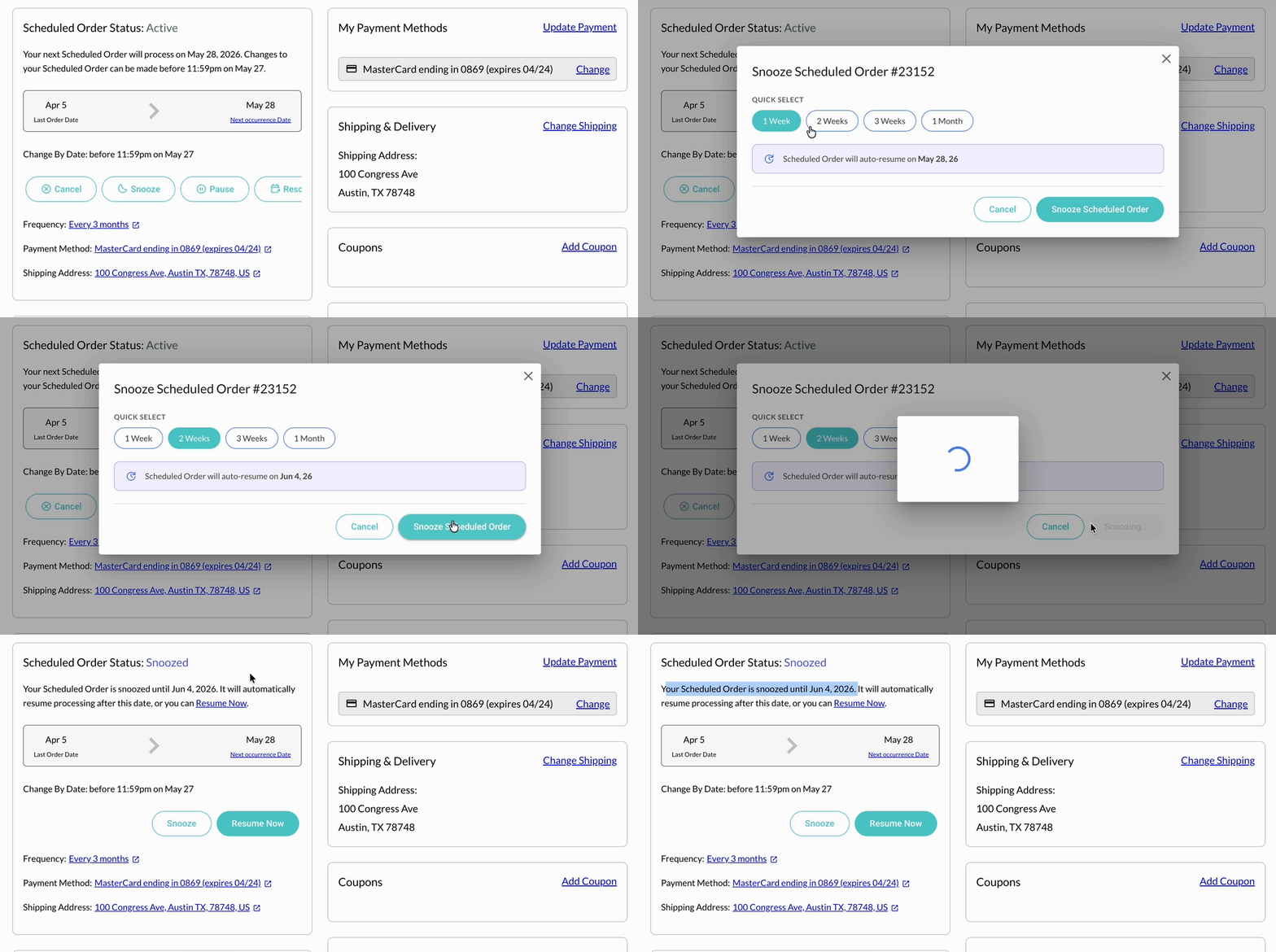
A subscriber Snoozes their Scheduled Order from the Subscriber Portal.
After Snoozing, the Subscriber Portal displays:
- A Snoozed badge with a sleep icon in place of the Active status
- The resume date — now the order's Next Occurrence Date, clearly displayed so subscribers know when their order returns
- A Resume button — letting subscribers resume their Scheduled Order at any time, without waiting for the resume date
👍 Learn more about the v2 Subscriber PortalThe Snooze button, badge, and dialog are part of the v2 Subscriber Portal's component library — see the v2 Subscriber Portal doc for the full set of components and embedding details.
Snooze in Your Online Store (Shopify & WooCommerce)
Snooze is available in your storefront wherever subscribers manage their Scheduled Orders.
Shopify. Snooze appears in the embedded v2 Subscriber Portal inside your store's account pages. The experience is identical to the standalone portal — the same Snooze button, dialog, badge, and Resume flow. No additional configuration is required: as long as the v2 Portal is enabled for your store and Allow Subscribers to Snooze is on, Snooze appears.
WooCommerce. WooCommerce stores have two display options for subscriber Scheduled Orders, and Snooze works in both:
- v2 Subscriber Portal embedded in WooCommerce — same as Shopify; Snooze appears automatically when enabled.
- Native UI from the Autoship for WooCommerce plugin — Snooze is fully supported in the Native UI, with WordPress-side configuration for enabling Snooze and customizing the action label (e.g., display Snooze as "Pause" or "Take a Break"). See How Customers Snooze Scheduled Orders for WooCommerce-specific setup and screenshots.
📘 Need to display the v2 Subscriber Portal in your storefront first?See Display the v2 Portal in Shopify or Display the v2 Portal in WooCommerce.
Auto-Resume Behavior
Snoozed Scheduled Orders resume automatically. There is no manual step required, and the subscriber doesn't need to log back in for it to happen.
When a Scheduled Order's resume date is reached, QPilot's auto-resume process picks it up within a few minutes and moves the order back to Active. The order then follows your site's normal processing rules for its next occurrence.
Two important things to know:
- When an order is Snoozed, its Next Occurrence Date is set to the resume date. Subscribers see one date — the day their order returns — and a Snoozed order is never left with a next order date in the past. If a subscriber resumes early, the Next Occurrence Date recalculates from that day forward based on the order's frequency, and the Save Activation safeguard prevents an immediate, unexpected charge.
- Both merchants and subscribers can receive a notification when a Scheduled Order is Snoozed, through your site's existing email and webhook notification channels. See Notifications for Customers and Notifications for Merchants.
Snooze as a Retention Action
Snooze is built into QPilot's Retain & Grow tools, letting you offer Snooze as a churn-reduction lever instead of losing a subscriber entirely.
Retention Workflows. Snooze is available as a Retention Workflow action — for example, when a subscriber attempts to pause or cancel, you can offer them the option to Snooze for a set duration first.
Splash Screen Offers. Snooze can be configured as an Offer Type in a Splash Screen, letting you present Snooze as a save-the-sale option at key moments in the subscriber journey.
📘 Learn more about retention toolsSee Retention Workflows for setting up Snooze as a retention action.
What Subscribers See When an Order Is Snoozed
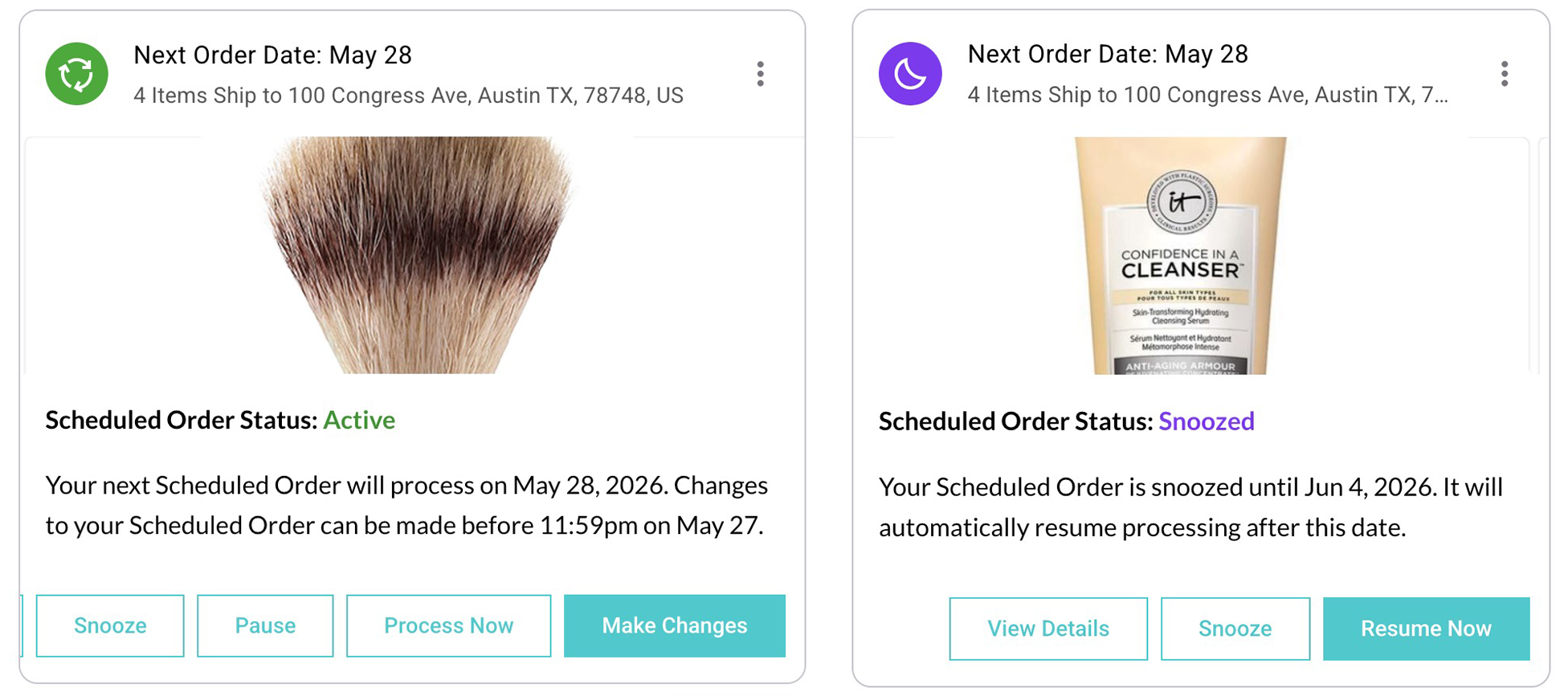
Left — an Active Scheduled Order. Right — the same Scheduled Order after the subscriber taps Snooze
The Summary Card surfaces only what's relevant when an order is Snoozed:
- The Snoozed badge replaces the Active status indicator
- The Resume Date is shown as the Next Occurrence Date — a single date for when the order returns
- A Resume button replaces the Snooze button
- Quick actions for changing items, payment method, and shipping address are hidden while the order is Snoozed — preserving the snooze state
To explore the order's full details (items, payment method, shipping address) while it's Snoozed, subscribers can tap into the Detailed View. From there, they can Resume the order at any time.
📘 Looking for a how-to to share with your subscribers?See How To Snooze A Scheduled Order in the Subscriber How-to Guides.
FAQ
Can a subscriber Snooze an order more than once?
Yes. A Snoozed order can be re-snoozed at any time by opening the Snooze dialog and choosing a new duration. The resume date updates to the new value.
What happens if a subscriber tries to change items or shipping while their order is Snoozed?
Edits to items, frequency, payment method, shipping, and coupons are locked while a Scheduled Order is Snoozed. The subscriber will need to Resume the order, make their changes, and then Snooze again if they still need a break.
Will my existing integrations break?
No. A Snoozed Scheduled Order is a special display of the existing Paused status — integrations that only understand Active and Paused will continue to work without changes. Snooze-specific data (the resume date, the duration, the duration type) is available on the Scheduled Order object for integrations that want to use it.
Can I bulk-Snooze multiple orders at once from the list?
Snooze is set per-Scheduled Order because duration selection is unique to each. Bulk Snooze may be added in a future release.
What's the difference between Snooze and Pause?
Pause is indefinite — a Paused Scheduled Order stays Paused until a merchant or subscriber Resumes it. Snooze is time-bound — a Snoozed Scheduled Order resumes automatically on its resume date. Snooze is generally a better experience for subscribers who just need a short break, and a better retention lever for merchants who want to avoid silent churn from indefinitely paused subscriptions.
Are there separate notifications when an order is Snoozed?
Yes. A "Snoozed" notification is sent to the subscriber when their Scheduled Order is Snoozed, through your site's existing customer notification settings. Merchants can also be notified through their existing administrator notification settings.
Does snoozing change my subscriber's next order date?
Yes. When an order is Snoozed, its Next Occurrence Date is set to the resume date, so the subscriber sees a single date for when their order returns. If they resume early, the next order date recalculates from that day based on the order's frequency.
What's Next
Updated 4 months ago