
Quick Action Links
Create link URLs for your subscribers to make changes to upcoming Scheduled Orders—add to emails, SMS texts, Klaviyo, and beyond!
What Are Quick Action Links?
Quick Action Links are URLs or "links" that enable your subscribers to make specific changes to their Scheduled Orders, like resuming a paused subscription or processing their next order early, just by clicking a link.
You can create Quick Action Links and add them to email campaigns, Klaviyo messages, billing reminders, SMS texts, or even support chats to drive subscriber engagement and reduce churn.
Quick Action Links are configured in your QPilot Merchant Center and are executed through your online store's Autoship App (Shopify or WooCommerce), depending on your ecommerce platform.
What Can You Do with Quick Action Links?
Here are some ways you can use Quick Action Links to retain and re-engage subscribers:
Win Back Paused or Cancelled Subscribers
Send a one-click "Resume" or "Reactivate" link in your win-back emails. Pair it with a discount code and watch conversions climb.
Let Subscribers Process Their Order Early
Running low on stock and want to take care of your best customers first? Send your subscribers a "Process Now" link so they can lock in their order before inventory runs out.
Let Subscribers Take a Break
Give subscribers an easy way to pause their subscription without cancelling entirely. Add pause links to your communications: "Need a break? Pause your subscription and come back when you're ready."
Automate Retention Sequences
Build Quick Action Links into your Klaviyo, Mailchimp, or Omnisend flows. Subscribers can take action directly from their inbox without logging in or navigating your site.
✨ Coming Soon: Skip Next Delivery ✨
Let subscribers skip their next delivery without pausing entirely. Join our newsletter to be the first to know when Skip is available.
How to Create a Quick Action Link
You create and manage Quick Action Links in your QPilot Merchant Center.
Step 1: Go to Quick Actions
- Log in to your QPilot Merchant Center
- Select your Site
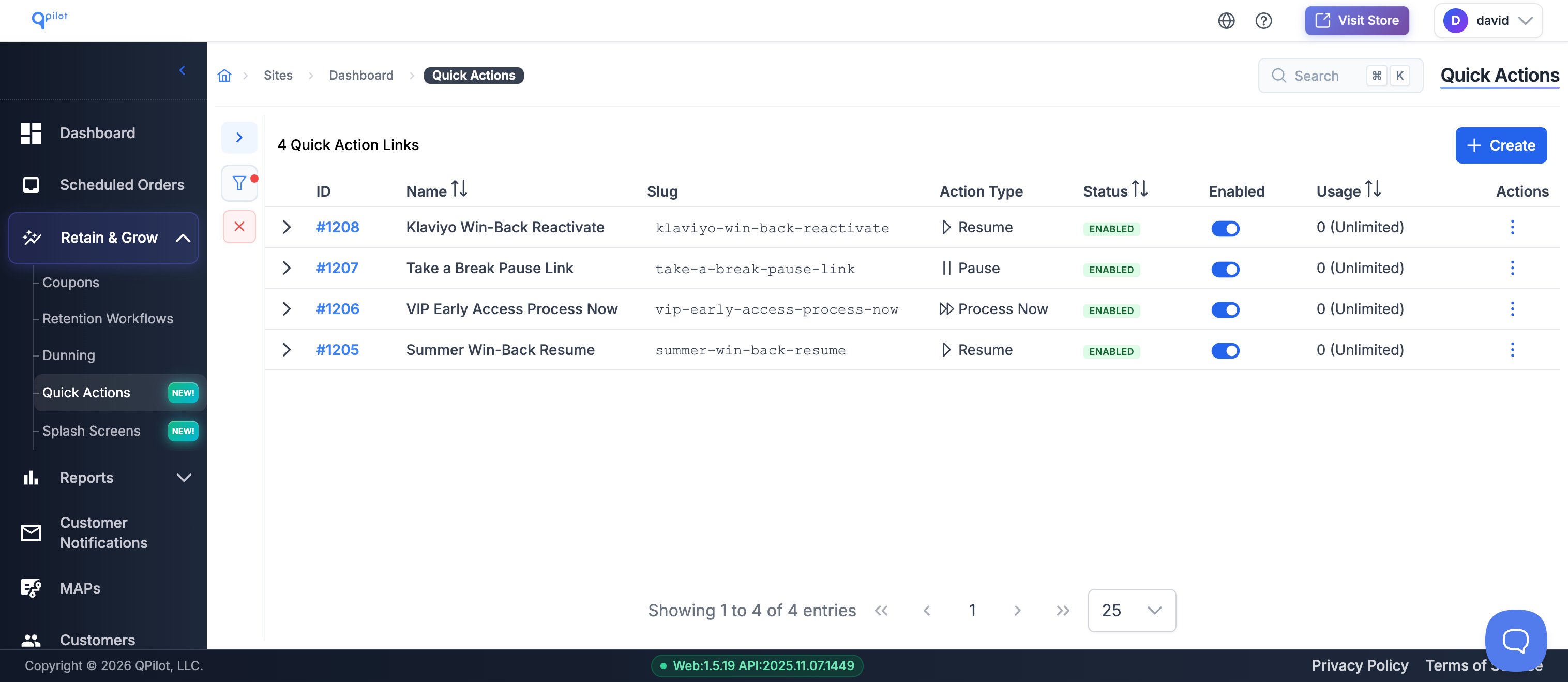
- Navigate to Retain & Grow > Quick Actions
- Click Create Quick Action
Step 2: Set Up the Basics
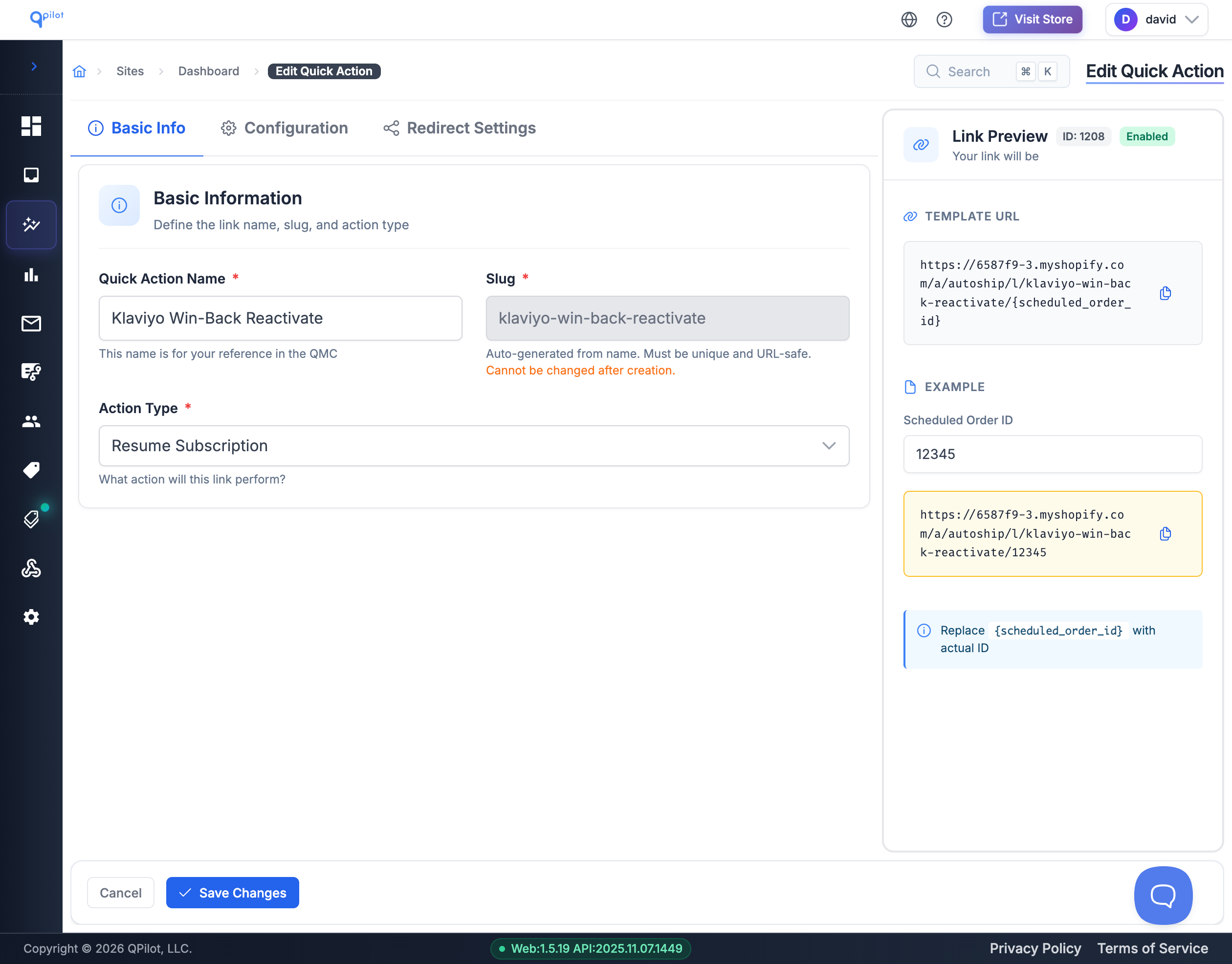
| Field | What It Does | Example |
|---|---|---|
| Name | Your internal label (subscribers don't see this) | "Summer Win-Back Resume" |
| Slug | The URL identifier for your link | summer-resume |
| Action Type | What happens when they click (see below) | Resume, Pause, Process Now, or Reactivate |
| Status | Turn the link on or off | Active |
Available Action Types
| Action Type | What It Does | Best For |
|---|---|---|
| Resume | Reactivates a paused Scheduled Order so it starts processing again | Win-back campaigns for paused subscribers |
| Pause | Pauses an active Scheduled Order (no future orders until resumed) | "Take a break" offers, temporary holds |
| Process Now | Triggers the next order immediately (charges the customer right away) | VIP early access, low-inventory alerts, "get it now" promos |
| Reactivate | Restores a cancelled or deleted Scheduled Order | Win-back campaigns for cancelled subscribers |
For technical details on how each action maps to the API, see Action Types Reference.
Step 3: Choose Your Security Settings
| Setting | What It Does | Recommendation |
|---|---|---|
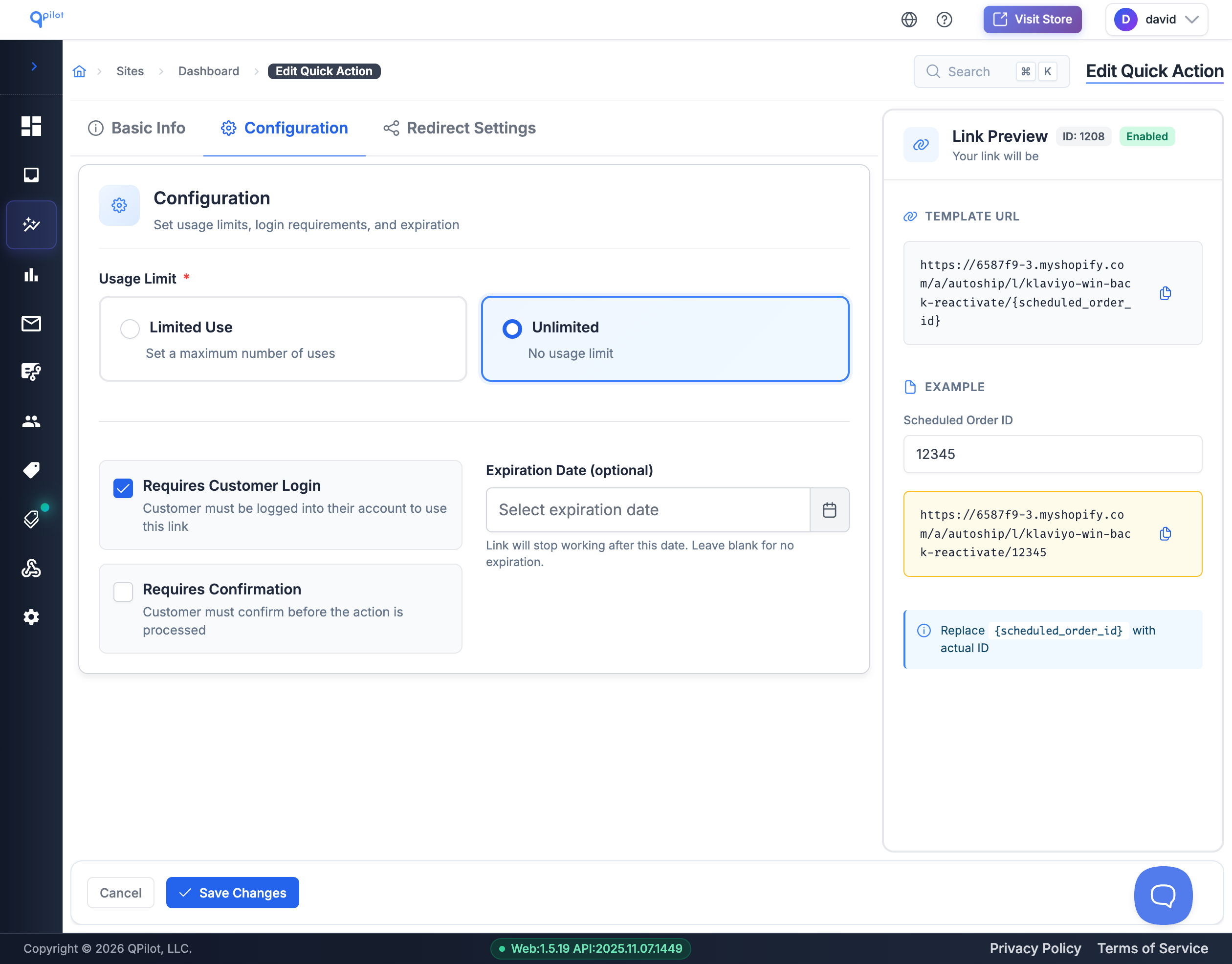
| Requires Login | Subscriber must log in before the action runs | Turn OFF for win-back campaigns (reduces friction) |
| Requires Confirmation | Show a confirmation page with order details before executing | Turn ON (builds trust, prevents accidents) |
Pro Tip (Security): Process Now links always require customer login and confirmation —regardless of your settings—because they trigger a charge. This protects your subscribers from unauthorized payments if a link gets forwarded or intercepted.
Step 4: Set Usage Limits (Optional)
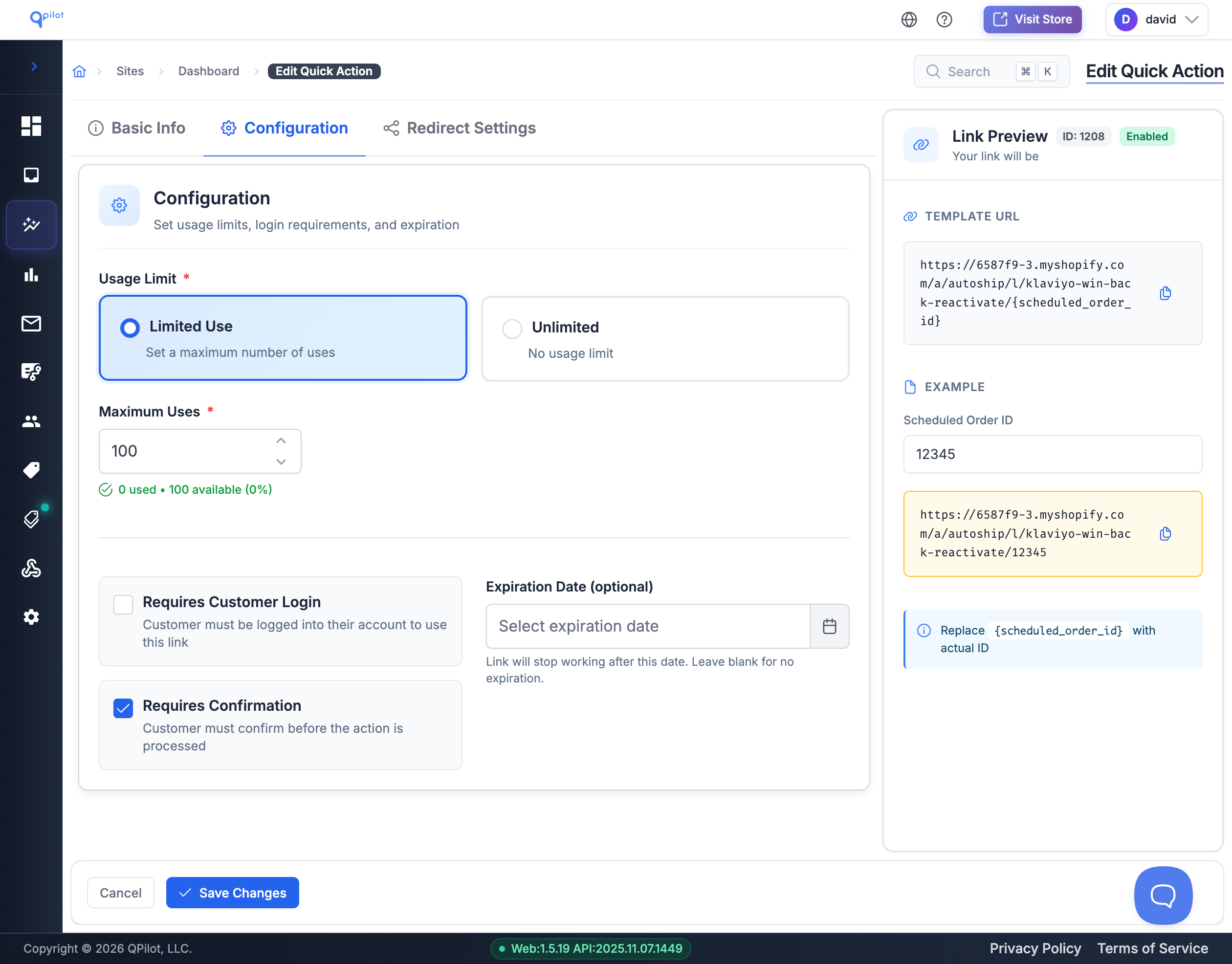
Want to limit how many times a link can be used? You can:
| Option | When to Use It |
|---|---|
| Unlimited | Evergreen links for ongoing campaigns |
| Limited | Promotional links with a cap (e.g., "first 100 customers") |
| Single Use | One-time tokens for VIP offers |
| Expiration Date | Time-limited promotions that auto-expire |
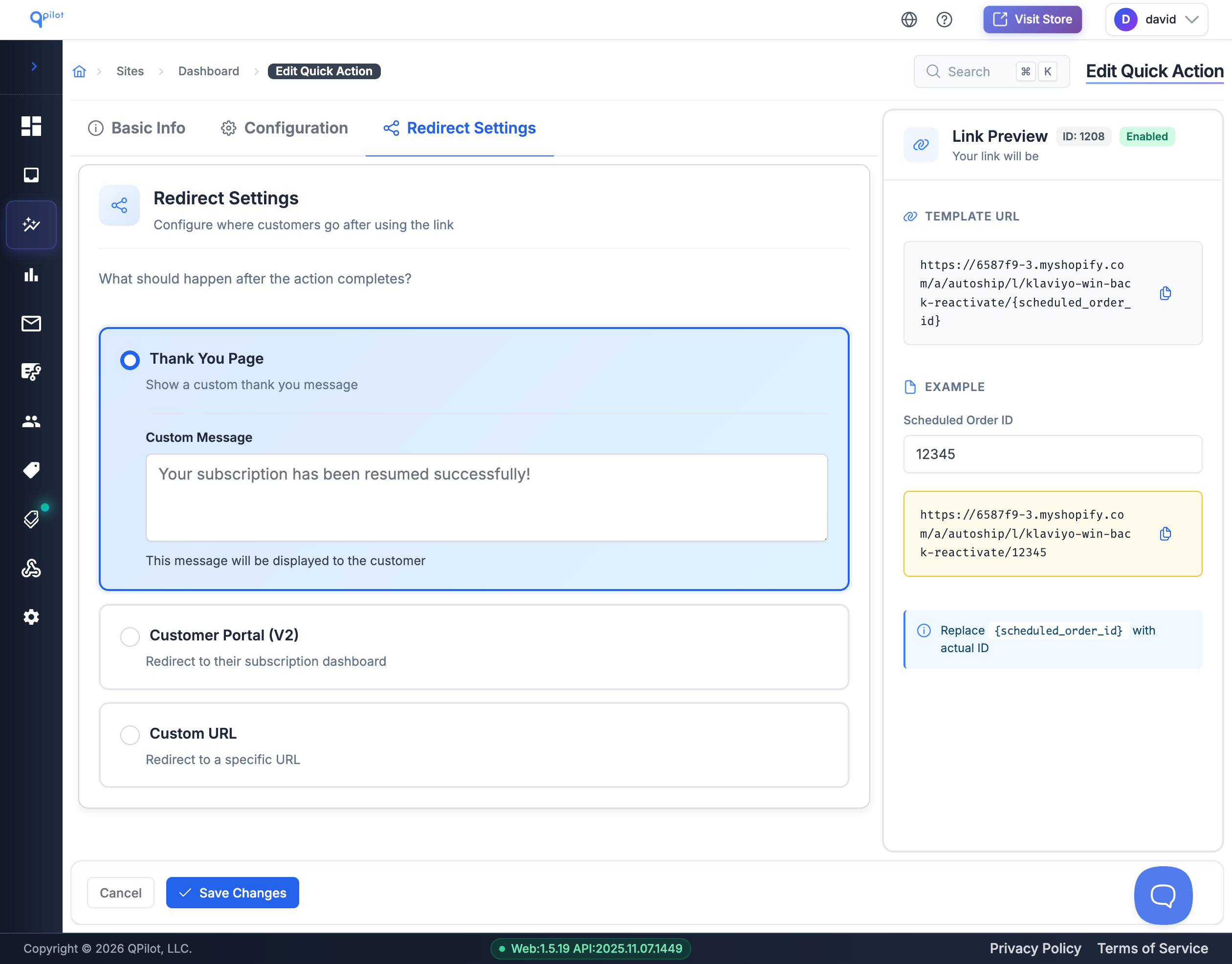
Step 5: Configure Where Subscribers Go After
After the action completes, where should your subscriber land?
| Redirect Option | Best For |
|---|---|
| Thank You Page | Simple confirmation with your custom message |
| Subscriber Portal | Let them review or manage their Scheduled Order |
| Custom URL | Your own landing page, upsell offer, or survey |
Pro Tip (Marketing): Use the Custom URL option with UTM parameters to track Quick Action Link performance in Google Analytics alongside your other campaigns.
How to Add Quick Action Links to Your Emails
Once you've created a Quick Action Link, you'll get a URL that's ready to use. To make it work for each subscriber, you just need to add your email platform's merge tag for the Scheduled Order ID.
What Your Quick Action Link Looks Like
For Shopify:
https://{your-shop}.myshopify.com/apps/qpilot/l/{slug}/{scheduled-order-id}For Woo:
https://{your-site.com}/autoship/l/{slug}/{scheduled-order-id}Replace {scheduled-order-id} with your email platform's merge tag so each subscriber gets a personalized link.
Adding the Link to Klaviyo
In Klaviyo, use the {{ scheduled_order_id }} merge tag:
https://yourstore.myshopify.com/apps/qpilot/l/summer-resume/{{ scheduled_order_id }}
[SCREENSHOT: klaviyo-quick-action-link]Klaviyo email editor with a button linked to a Quick Action URL. Highlight the merge tag.
Adding the Link to Mailchimp
In Mailchimp, use the *|SCHEDULED_ORDER_ID|* merge tag:
https://yourstore.com/autoship/l/summer-resume/*|SCHEDULED_ORDER_ID|*Adding the Link to Other Platforms
The merge tag syntax varies by platform—check your email provider's documentation for the correct format.
Getting Scheduled Order IDs into your platform:
- If your platform syncs with QPilot automatically, the Scheduled Order ID should already be available as a subscriber property
- If not, you can export Scheduled Order data from QPilot (via reports or the Scheduled Order list view) and import it into your email platform
How Subscribers Experience Quick Action Links
When a subscriber clicks your Quick Action Link, here's what they see:
1. Confirmation Page (if enabled)
They see their order summary—products, quantities, next date, and total—with Confirm and Cancel buttons. This builds trust and prevents accidental clicks.
2. Success Page
After confirming, they see a success message (which you can customize) confirming the action completed.
3. Redirect
They're automatically redirected to the Thank You Page, Subscriber Portal, or your custom URL.
[GIF: confirmation-flow]The full subscriber experience: click link → confirmation page → confirm → success → redirect.
Security: How Quick Action Links Protect Your Subscribers
Quick Action Links include multiple security layers so you can use them confidently in marketing campaigns:
Financial Actions Always Require Login
Process Now links trigger a payment, so they always require authentication—even if you set "Requires Login" to off. This prevents unwanted charges from forwarded or intercepted links.
Email Scanner Protection
Corporate email systems (Outlook SafeLinks, Gmail, Mimecast, etc.) scan links before they reach the inbox. Quick Action Links detect these automated scans and block them from triggering actions. Your subscriber has to actually click the link themselves.
Confirmation Step
When enabled, subscribers see exactly what will happen before they confirm. No surprises.
Rate Limiting
Links are limited to 5 requests per minute per IP to prevent abuse.
Audit Logging
Every Quick Action Link interaction is logged—access attempts, confirmations, successes, and failures—so you can troubleshoot issues and monitor usage.
Pro-Tip: In WooCommerce stores, you can adjust your own security configuration directly from your Autoship Settings page in the WordPress Admin. Learn more about advanced security configuration for Quick Action Links in Woo.
How to Track Quick Action Link Performance
You can monitor how your Quick Action Links perform directly in your QPilot Merchant Center.
Go to Retain & Grow > Quick Actions > click any Quick Action Link and then Menu > View Metrics to see:
| Metric | What It Tells You |
|---|---|
| Total Usages | How many times the link was used |
| Unique Customers | How many different subscribers used it |
| Success Rate | Percentage of successful actions |
| Usage Log | Detailed record of every click with timestamps, order IDs, and outcomes |
[SCREENSHOT: quick-action-analytics]Analytics dashboard for a Quick Action Link showing usage metrics.
How-To Examples: Quick Action Link Use Cases
Win-Back Resume Campaign
Goal: Get paused subscribers to reactivate with one click.
| Setting | Value |
|---|---|
| Name | Win-Back Resume Q1 |
| Slug | resume-q1 |
| Action Type | Resume |
| Requires Login | No |
| Requires Confirmation | Yes |
| Usage Limit | Unlimited |
| Redirect | Thank You Page |
| Message | "Welcome back! Your subscription is active again." |
Your URL:
https://yourstore.com/apps/qpilot/l/resume-q1/{{ scheduled_order_id }}VIP Early Access Process Now
Goal: Let your best customers lock in their order before inventory runs out.
| Setting | Value |
|---|---|
| Name | VIP Early Access - Process Now |
| Slug | vip-process-now |
| Action Type | Process Now |
| Requires Login | Yes (automatic) |
| Requires Confirmation | Yes |
| Usage Limit | Unlimited |
| Redirect | Custom URL |
| Custom URL | https://yourstore.com/vip-thanks |
| UTM Campaign | vip-early-access |
Email copy: "We're running low on your favorite product. As a subscriber, you get first dibs—process your order now before we sell out."
Take a Break Pause Campaign
Goal: Give subscribers an easy way to pause without cancelling.
| Setting | Value |
|---|---|
| Name | Take a Break - Pause |
| Slug | take-a-break |
| Action Type | Pause |
| Requires Login | No |
| Requires Confirmation | Yes |
| Usage Limit | Unlimited |
| Redirect | Subscriber Portal |
| Message | "Your subscription is paused. Come back anytime—just click Resume when you're ready!" |
Email copy: "Need a break? No problem. Pause your subscription and come back whenever you're ready."
✨ Coming Soon: Skip Next Delivery ✨
Goal: Let subscribers skip their next delivery without pausing entirely.
The Skip action type is coming soon! With Skip, subscribers will be able to skip just their next delivery while keeping their subscription active—perfect for "I'm out of town" or "I still have plenty" scenarios.
Field Reference
For developers and technical users, here's the complete field reference:
Quick Action Link Fields
| Field | Type | Description | Required | Default |
|---|---|---|---|---|
name | String | Internal name | Yes | — |
slug | String | URL identifier (alphanumeric, hyphens allowed) | Yes | Auto-generated |
actionType | Integer | 0=Resume, 1=Pause, 2=Process Now, 3=Reactivate | Yes | — |
status | Boolean | Active or inactive | Yes | true |
requiresLogin | Boolean | Require authentication | Yes | Action-dependent |
requiresConfirmation | Boolean | Show confirmation page | Yes | true |
usageLimitType | Integer | 0=Single Use, 1=Limited, 2=Unlimited | Yes | 2 |
maxUses | Integer | Max uses (when Limited) | Conditional | null |
expirationDateUtc | DateTime | Expiration in UTC | No | null |
redirectType | Integer | 0=Thank You, 1=Portal, 2=Custom URL | Yes | 0 |
redirectMessage | String | Custom success message | Conditional | — |
customUrl | String | Redirect destination | Conditional | — |
utmSource | String | UTM source | No | — |
utmMedium | String | UTM medium | No | — |
utmCampaign | String | UTM campaign | No | — |
utmTerm | String | UTM term | No | — |
utmContent | String | UTM content | No | — |
Action Types
| Action | ID | API Endpoint | What It Does |
|---|---|---|---|
| Resume | 0 | PUT /ScheduledOrders/{id}/Status/Active | Changes status from Paused to Active. The Scheduled Order resumes its normal processing cycle based on the Next Occurrence Date. |
| Pause | 1 | PUT /ScheduledOrders/{id}/Status/Paused | Changes status from Active to Paused. No orders will process until the subscriber resumes. Next Occurrence Date is preserved. |
| Process Now | 2 | POST /ScheduledOrders/{id}/Retry | Triggers immediate order processing regardless of Next Occurrence Date. Creates a new order and charges the customer. Always requires authentication. |
| Reactivate | 3 | PUT /ScheduledOrders/{id}/SafeActivate | Restores a Scheduled Order that was cancelled or deleted. Sets status to Active and recalculates the Next Occurrence Date. |
Redirect Types
| Type | ID | Behavior |
|---|---|---|
| Thank You Page | 0 | Shows your custom success message |
| Subscriber Portal | 1 | Opens the Subscriber Portal to their Scheduled Order |
| Custom URL | 2 | Redirects to your specified URL with UTM params |
Troubleshooting
"Link Not Found"
The slug doesn't exist or was deleted. Check Retain & Grow > Quick Actions in your QPilot Merchant Center and verify the slug matches your URL exactly.
"Link Expired"
The Quick Action Link's expiration date has passed. Update the expiration or create a new link.
"Usage Limit Exceeded"
The link hit its maximum uses. Increase the limit or create a new link.
Subscriber Redirected to Login
Expected for Process Now links (they always require login). For other action types, check if "Requires Login" is enabled.
"Click the Link Again" Message
This means an email scanner (like Outlook SafeLinks) pre-fetched the link. The subscriber just needs to click the link directly from their email—it will work on the second click.
Confirmation Page Expired
The subscriber waited more than 30 minutes before clicking Confirm. They can click the original link again to restart.
[SCREENSHOT: error-page-expired]The "confirmation expired" page with instructions to click the original link.
Updated 5 months ago